Showing posts with label python. Show all posts

2013/10/13

desktop-mirror 串流螢幕上的影像及聲音到其他電腦上


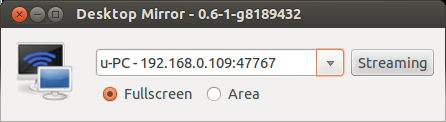
desktop-mirror 最近在玩的 project,這隻程式主要是讓使用者的電腦上的畫面及聲音可以即時傳送給其他同網域的電腦,相類似的應用如 AirPlay Mirroring and Miracast

所有程式可在 github 上找到。


目前 desktop-mirror 在以下環境下測試皆能順暢的分享螢幕上畫面及聲音 Windows 7, Ubuntu 12.04 and XBMC。以下是實際使用的影片:


技術細節 - 影音串流


螢幕畫面的串流是用 ffmpeg 及 crtmpserver。其中,ffmpeg 配合著影像輸入為 x11grab (Ubuntu) 或 dshow (Windows) 將影像編碼成 H.264 baseline profile,聲音則是輸入為 ALSA 編碼成 mp3,最後封裝成 flv ,透過 TCP 傳出去。在接收端為非 XBMC 的情形下,ffmpeg 會將輸出結果送至 crtmpserver,接著 crtmpserver 為改成用 rtmp protocol 等待接收端來要求影音。

在這整個流程中有很多其他選擇,但考慮到跨平台及不同的接收端,最後才採用這樣的(奇怪)組合。

技術細節 - Windows/Ubuntu 平台移植


這隻程式使用的語言及 GUI library 是 wxPython,因此在各個平台之間的移植沒遇到什麼大問題。當然,前提是在選擇 library 及 external program 要十分注意,像是 mDNS (Avahi/Bonjour) 在 python 上介面是不是跨平台等。

唯一踩到的地雷是在 python 處理 process 輸出時用到的 select/epoll,這類的 function 在 Windows 上只支援 socket descriptor,因此重新用 Queue 及 thread 重新做了一個類似功能的東西。

最後打包成安裝檔的部分。在 Windows 就準備 py2exe,一堆的動態鏈結的程式庫和執行檔,及 NSIS 的包裝檔。Ubuntu 的部分則就準備 debianize 的資料匣,再準備個 recipe 讓它定期自行去 github import 程式,再自動編成 package 放到 PPA。

最後


這個 project 自認為很好玩,也還有一些遠端遙控的部分功能可以加強,只是我又想到別的好玩東西了,這個案子就做到這裡就好。

後記:參加了 QNAP 舉辦的 APP 競賽得到了第一名節殊榮


2013/03/20

使用 py2exe 製作 wxPython 執行檔

製作 wxPython 執行檔的方法很多,像 pyinstaller, cx-freeze, shedlin,網路上有人做了個比較表可以參考。本篇主要給了一個 py2exe 的例子。

所有的程式放在 github

環境
  • Windows XP
  • Visual Studio 2008 Express
  • Python 2.7
  • wxPython 2.8
  • py2exe 0.6.8.win32-py2.7
Hello World in wxPython

首先,先準備好要編成執行檔的 wxPython 源碼,存成 main.py

import wx

class MainWindow(wx.Frame):
    def __init__(self, parent, title):
        wx.Frame.__init__(self, parent, title=title, size=(200,100))
        self.control = wx.TextCtrl(self, style=wx.TE_MULTILINE)
        self.CreateStatusBar() # A Statusbar in the bottom of the window

        # Setting up the menu.
        filemenu= wx.Menu()

        # wx.ID_ABOUT and wx.ID_EXIT are standard IDs provided by wxWidgets.
        filemenu.Append(wx.ID_ABOUT, "&About"," Information about this program")
        filemenu.AppendSeparator()
        filemenu.Append(wx.ID_EXIT,"E&xit"," Terminate the program")

        # Creating the menubar.
        menuBar = wx.MenuBar()
        menuBar.Append(filemenu,"&File") # Adding the "filemenu" to the MenuBar
        self.SetMenuBar(menuBar) # Adding the MenuBar to the Frame content.
        self.Show(True)

app = wx.App(False)
frame = MainWindow(None, "Sample editor")
app.MainLoop()

py2exe setup.py

複製 Visual studio libraries 到 python DLLs 資料匣
copy C:\Program Files\Microsoft Visual Studio 9.0\VC\redist\x86\Microsoft.VC90.CRT\*.dll C:\Python27\DLLs
準備 py2exe 佈署設定程式 setup.py 如下

#!/usr/bin/python

from distutils.core import setup
import py2exe
from glob import glob
import sys

#sys.path.append('ftpserver')

manifest = """
<?xml version="1.0" encoding="UTF-8" standalone="yes"?>
<assembly xmlns="urn:schemas-microsoft-com:asm.v1"
manifestVersion="1.0">
<assemblyIdentity
    version="0.64.1.0"
    processorArchitecture="x86"
    name="Controls"
    type="win32"
/>
<description>Your Application</description>
<dependency>
    <dependentAssembly>
        <assemblyIdentity
            type="win32"
            name="Microsoft.Windows.Common-Controls"
            version="6.0.0.0"
            processorArchitecture="X86"
            publicKeyToken="6595b64144ccf1df"
            language="*"
        />
    </dependentAssembly>
</dependency>
</assembly>
"""

"""
installs manifest and icon into the .exe
but icon is still needed as we open it
for the window icon (not just the .exe)
changelog and logo are included in dist
      data_files=["yourapplication.ico"]
            "other_resources": [(24,1,manifest)]
    data_files=data_files,
"""
data_files = [("Microsoft.VC90.CRT", glob(r'C:\Program Files\Microsoft Visual Studio 9.0\VC\redist\x86\Microsoft.VC90.CRT\*.*'))]
includes = []
excludes = ['_gtkagg', '_tkagg', 'bsddb', 'curses', 'email', 'pywin.debugger',
            'pywin.debugger.dbgcon', 'pywin.dialogs', 'tcl',
            'Tkconstants', 'Tkinter']
packages = []
dll_excludes = ['libgdk-win32-2.0-0.dll', 'libgobject-2.0-0.dll', 'tcl84.dll',
                'tk84.dll']

setup(
    windows = [
        {
            "script": "main.py",
        }
    ],
    options = {"py2exe": {"compressed": 2,
                          "optimize": 2,
                          "includes": includes,
                          "excludes": excludes,
                          "packages": packages,
                          "dll_excludes": dll_excludes,
                          "bundle_files": 3,
                          "dist_dir": "dist",
                          "xref": False,
                          "skip_archive": False,
                          "ascii": False,
                          "custom_boot_script": '',
                         }
              },
) 

打開命令提示字元下

cd \path\to\hello
python setup.py py2exe

在資料匣 dist 便可發現執行檔
2011/09/04

Custom gesture support on Ubuntu

恰巧在IBM developer看到了一篇Ubuntu上gesture的教學,但因為那篇是perl及年久失修(?),所以我稍微在Ubuntu 11.04及用python重寫了這個應用。

這篇文章將會給介紹Ubuntu上怎麼來寫筆電的touchpad gesture應用,主要用python、synclient和xdotool。synclient是用來抓touchpad被按下的座標值及指數。xdotool則用來送出相對應的鍵盤行為。

synclient

首先,在Ubuntu 11.04上,若要啟用synclient必需先修改xorg.conf,加入Option "SHMConfig" "on",如下

//file: /usr/share/X11/xorg.conf.d/50-synaptics.conf
Section "InputClass"
        Identifier "touchpad catchall"
        Driver "synaptics"
        MatchIsTouchpad "on"
        MatchDevicePath "/dev/input/event*"
        Option "SHMConfig" "on"
EndSection

接著可在terminal上使用synclient,來看一下他的輸出:

doro@doro-UL80Jt ~/src/touchpad $ synclient -m 10
    time     x    y   z f  w  l r u d m     multi  gl gm gr gdx gdy
   0.000   418  413   0 0  0  0 0 0 0 0  00000000
   0.617   363  359  31 1  0  0 0 0 0 0  00000000
   0.627   362  356  31 1  0  0 0 0 0 0  00000000
   0.637   363  352  31 1  0  0 0 0 0 0  00000000
   0.657   364  349  31 1  0  0 0 0 0 0  00000000
   0.677   368  347  31 1  0  0 0 0 0 0  00000000
   0.688   371  344  31 1  0  0 0 0 0 0  00000000
   0.708   373  340  31 1  0  0 0 0 0 0  00000000
   0.728   375  336  31 1  0  0 0 0 0 0  00000000
   0.738   376  333  31 1  0  0 0 0 0 0  00000000
   0.849   376  333   0 0  0  0 0 0 0 0  00000000
   1.688   232  672  31 2  0  0 0 0 0 0  00000000
   1.718   274  679  31 3  0  0 0 0 0 0  00000000
   1.799   274  679   0 0  0  0 0 0 0 0  00000000

這個指令會輸出目前touchpad被按下的點(x,y)以及f欄位標示出指數。因此我們便可利用這3個值來判斷手勢。最後再利用xdotool來執行我們要做的行為。

Example

底下這個例子,將會實作
  • 若3指按下時,送出super+w,進入expo mode 
  • 若3指按下後移動上/下/左/右超過100個單位,送出ctrl+alt+Up/Down/Left/Right,來做work space的切換 

#!/usr/bin/python
# -*- coding: utf-8 -*-

import logging
logging.basicConfig(filename='/tmp/multitouch.log',
        level=logging.DEBUG, 
        format='[%(asctime)s][%(name)s][%(levelname)s] %(message)s')
logger = logging.getLogger('multitouch')

import subprocess
import re

if __name__ == "__main__":
    cmd = 'synclient -m 10'

    p = subprocess.Popen(cmd, stdout = subprocess.PIPE, 
            stderr = subprocess.STDOUT, shell = True)
    skip = False
    try:
        while True:
            line = p.stdout.readline()
            if not line:
                break
            try:
                tokens = [x for x in re.split('([^0-9\.])+', line.strip()) if x.strip()]
                x, y, fingers = int(tokens[1]), int(tokens[2]), int(tokens[4])
                logger.debug('Result: ' + str(tokens))
                if fingers == 3:
                    if skip:
                        continue
                    skip = True
                    start_x, start_y = x, y
                else:
                    if skip:
                        diff_x, diff_y = (x - start_x), (y - start_y)
                        if diff_x > 100:
                            logger.info('send...diff_x > 100')
                            subprocess.Popen("xdotool key ctrl+alt+Right", shell=True)
                        elif diff_x < -100:
                            logger.info('send...diff_x < -100')
                            subprocess.Popen("xdotool key ctrl+alt+Left", shell=True)
                        elif diff_y > 100:
                            logger.info('send...diff_y > 100')
                            subprocess.Popen("xdotool key ctrl+alt+Down", shell=True)
                        elif diff_y < -100:
                            logger.info('send...diff_y < -100')
                            subprocess.Popen("xdotool key ctrl+alt+Up", shell=True)
                        else:
                            logger.info('send...super+w')
                            subprocess.Popen("xdotool key super+w", shell=True)
                    skip = False
            except (IndexError, ValueError):
                pass
    except KeyboardInterrupt:
        pass 
(keyboard is better, but just for fun :D)